Screenshot
Voice Screenshot
Starting from HiCar App version 13.2.0.506, you can take a screenshot directly by voice. After connecting HiCar and waking up the voice assistant, simply say "Take a screenshot." The screenshot image is saved in your phone's photo album.
Manual Screenshot
The HiCar screenshot function relies on the driving mode feature on your phone. If you are not yet familiar with HiCar driving mode, you can click Driving Mode Introduction to learn more.
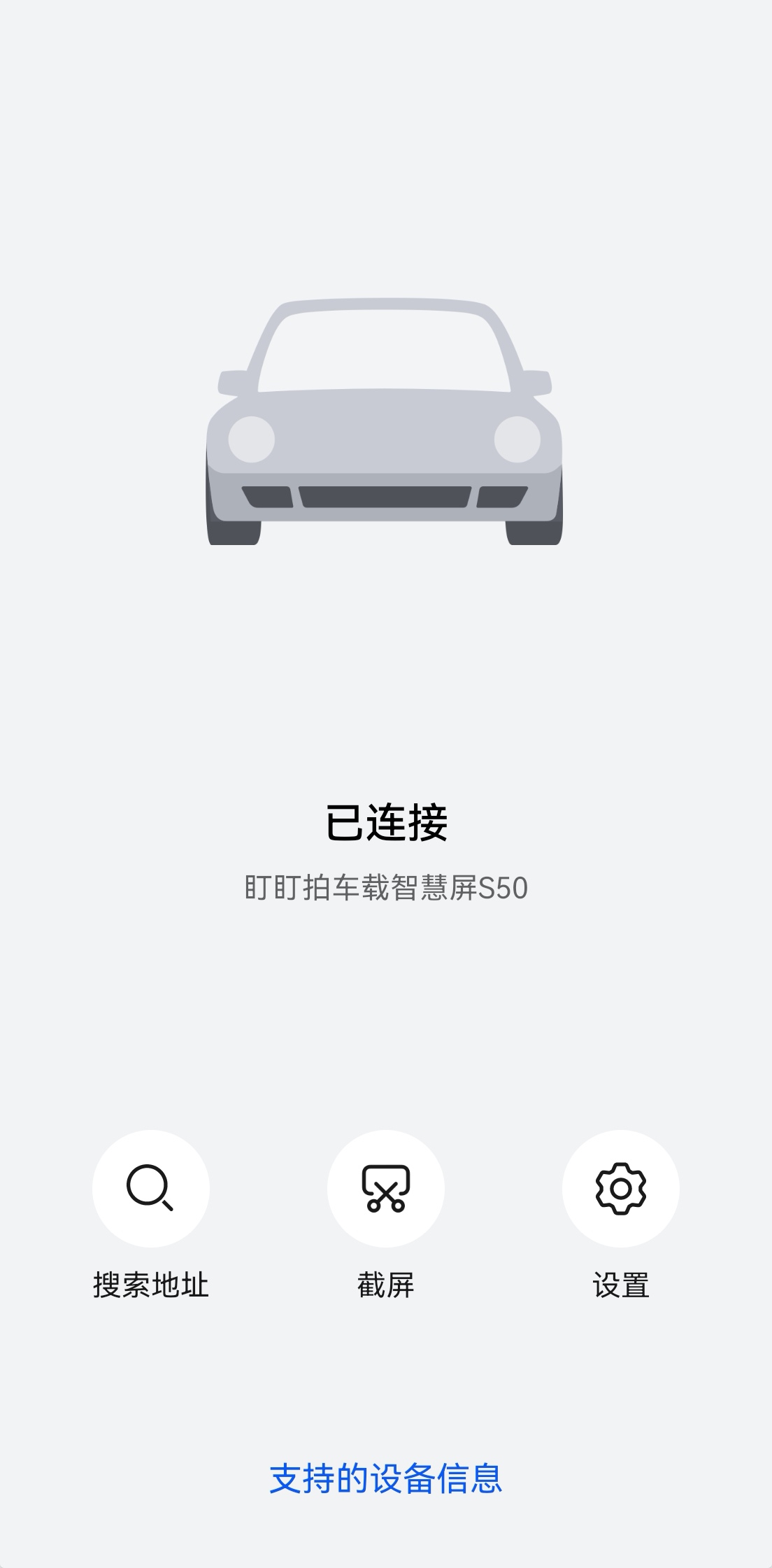
When you are connected to HiCar and enable the driving mode feature on your phone, the driving mode interface will change to the HiCar remote control style shown below. At this point, tap the "Screenshot" button in the center to capture a screenshot of the HiCar interface. The captured image is saved in your phone's photo album.