Desktop Cards
Desktop cards are a shortcut method provided by HiCar. You can use cards to quickly view information about apps/services, enter apps/services, and execute quick functions provided by apps/services.
Card Categories
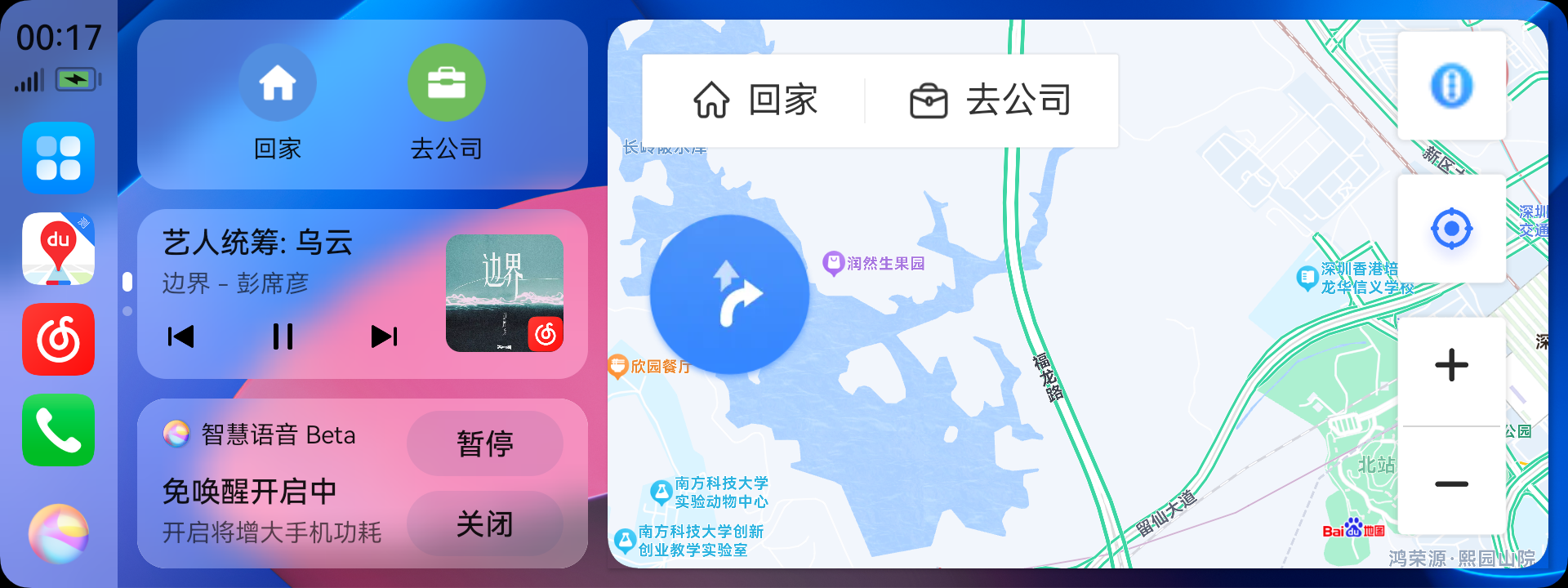
Cards primarily include the following categories:
- Map Card: Displays map app shortcuts (e.g., Go Home, Go to Company) and shows brief navigation information when navigating.
- Audio Card: Displays audio app shortcuts, including Previous, Play/Pause, and Next.
- Calendar Card: Displays the day's schedule information from the calendar app.
- Weather Card: Displays weather information for your current location from the weather app.
- Smart Life Card: Displays Home and Away scene cards from the Smart Life app. To show the Smart Life card, please add Home and Away scenes in the Smart Life app on your phone.
- Smart Recommendation Card: Displays flight reminders, hotel/tourist attraction recommendations from Situational Intelligence.
- Tips Card: Displays feature recommendations from the Tips app.
- IoT Card: Displays controls for other in-vehicle devices connected to HiCar, such as air freshener cards, car seat cards, etc.
- Other Cards: Other system-provided cards, such as the voice wake-up free card.
Cards are automatically generated and sorted by the system without manual intervention. This also means you cannot manually adjust the display order of cards.
Managing Desktop Cards
HiCar allows you to control whether a card is displayed. You can go to "Settings > Desktop > Card Management" to turn cards on or off as needed.
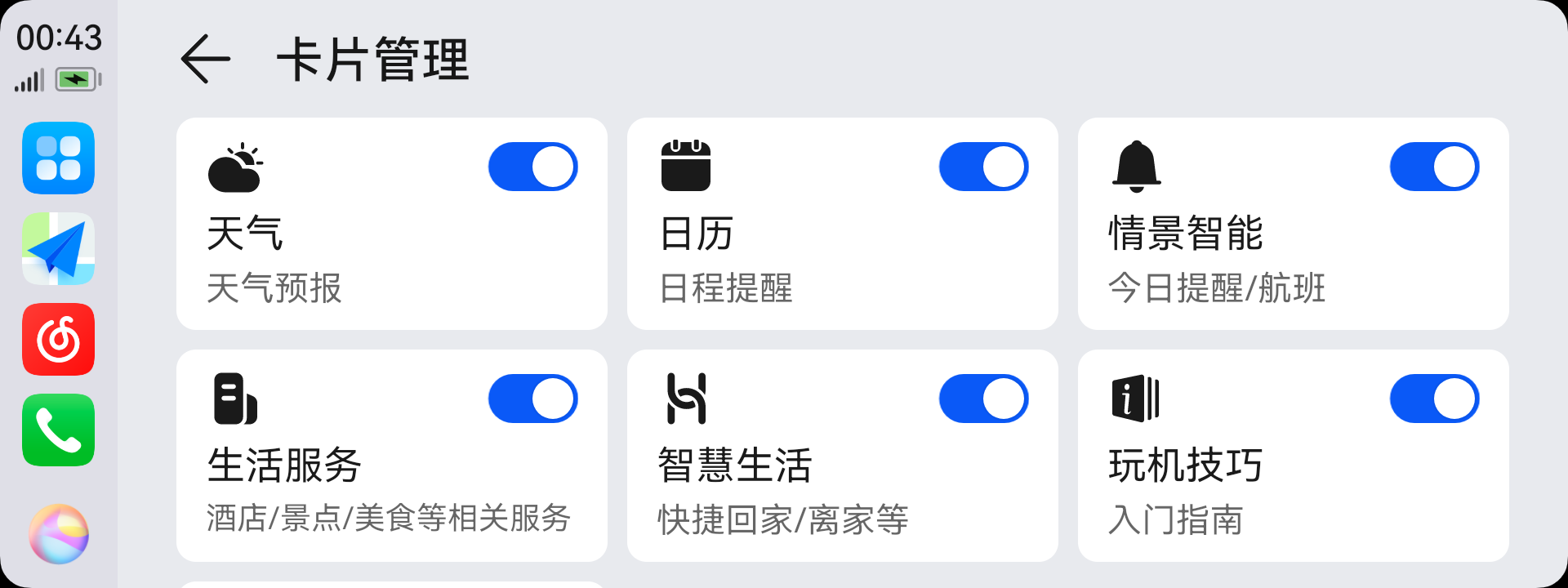
HiCar turns some cards off by default. It is recommended that you set the card switches according to your actual needs in Card Management.
After turning on a card, it may not appear immediately. The logic for when cards appear is as follows:
- Weather Card: Appears immediately after being turned on.
- Calendar Card: After being turned on, the card only appears when there is an event in the calendar (e.g., a meeting notification).
- Situational Intelligence Card: After being turned on, only the flight card appears, and only when the following conditions are met:
- The flight service card is enabled. Phone-side settings path: Settings > Smart Assistant > Smart Suggestions > Situational Intelligence > Flight > Service Card.
- Within 24 hours before flight departure.
- Life Services Card: After being turned on, only the hotel recommendation card appears, and only when the following conditions are met:
- A home address has been recorded in Smart Assistant. Phone-side settings path: Settings > Smart Assistant > Celia > My > Celia Memory > Home Address.
- The current location is more than 50 km from the home address.
- The current time is between 21:00 and 24:00.
- Smart Life Card: After being turned on, the card only appears when Home and Away scenes have been set up in the Smart Life app on your phone.
- Tips Card: After being turned on, the card only appears when there is recommended content in the Tips app.
- IoT Device Card: After being turned on, the card only appears when HiCar-supported devices (e.g., in-car air freshener, child car seat) have been added in the Smart Life app on your phone.