Desktop Wallpaper
Preset Wallpapers
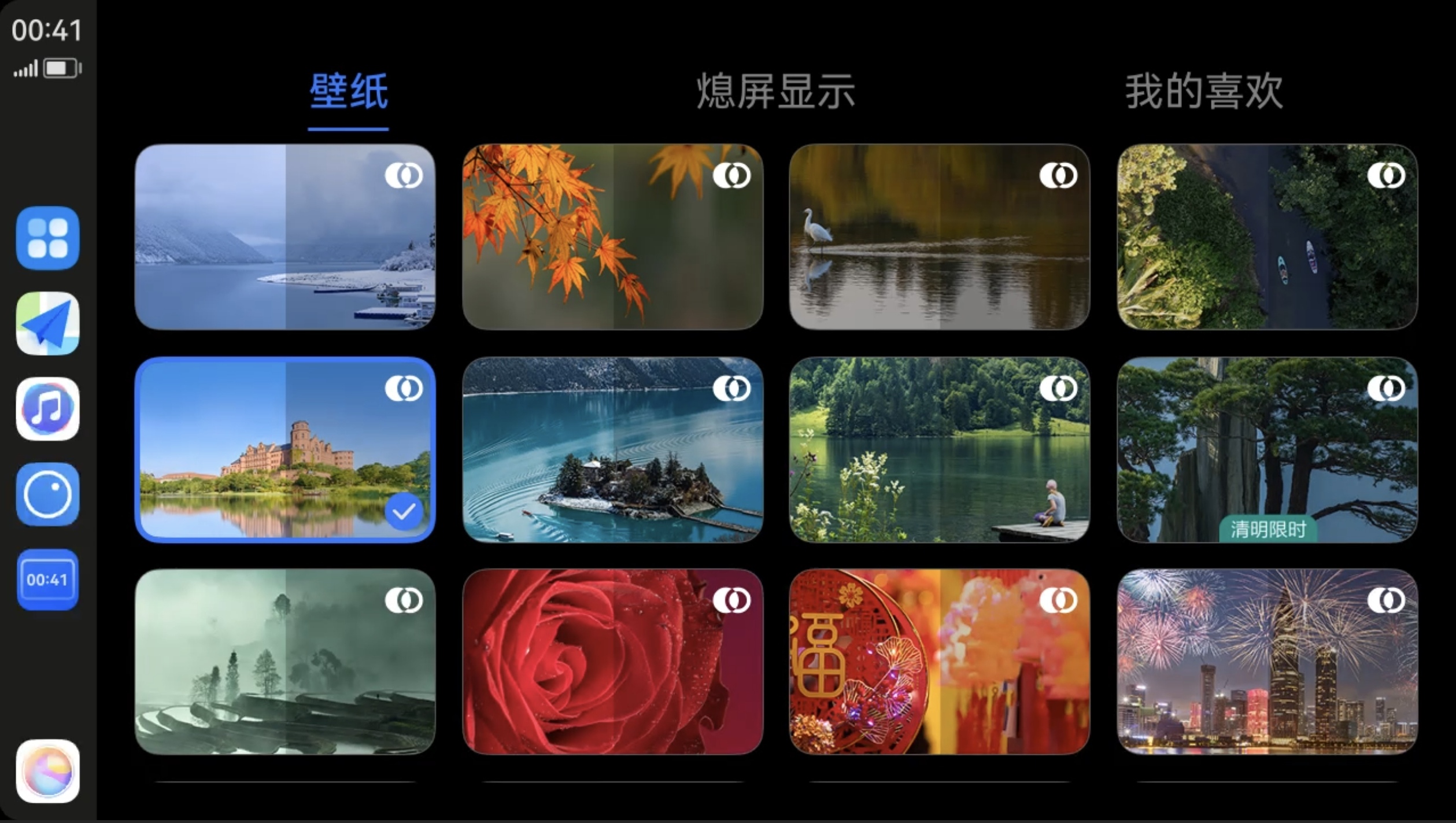
Next HiCar supports changing the desktop wallpaper. After connecting to Next HiCar, tap the first icon at the top of the DOCK area to switch to the app desktop, then enter "Themes" to change your preferred wallpaper.
Wallpapers support preview before applying:
Preview: Tap a wallpaper thumbnail to enlarge it, then tap the wallpaper again to preview its actual display effect. Tap again to exit preview.
Apply: After selecting a wallpaper, tap "Apply" to set it as the desktop wallpaper.
Favorites: While selecting wallpapers, you can also favorite your preferred wallpapers. Later, you can view all favorited wallpapers in the "My Favorites" tab.
Some wallpapers support light/dark mode and will automatically switch to the corresponding mode when HiCar's light/dark mode changes.
Custom Wallpapers
Next HiCar does not currently support custom wallpapers (as of November 16, 2025).
Always-On Display Wallpaper
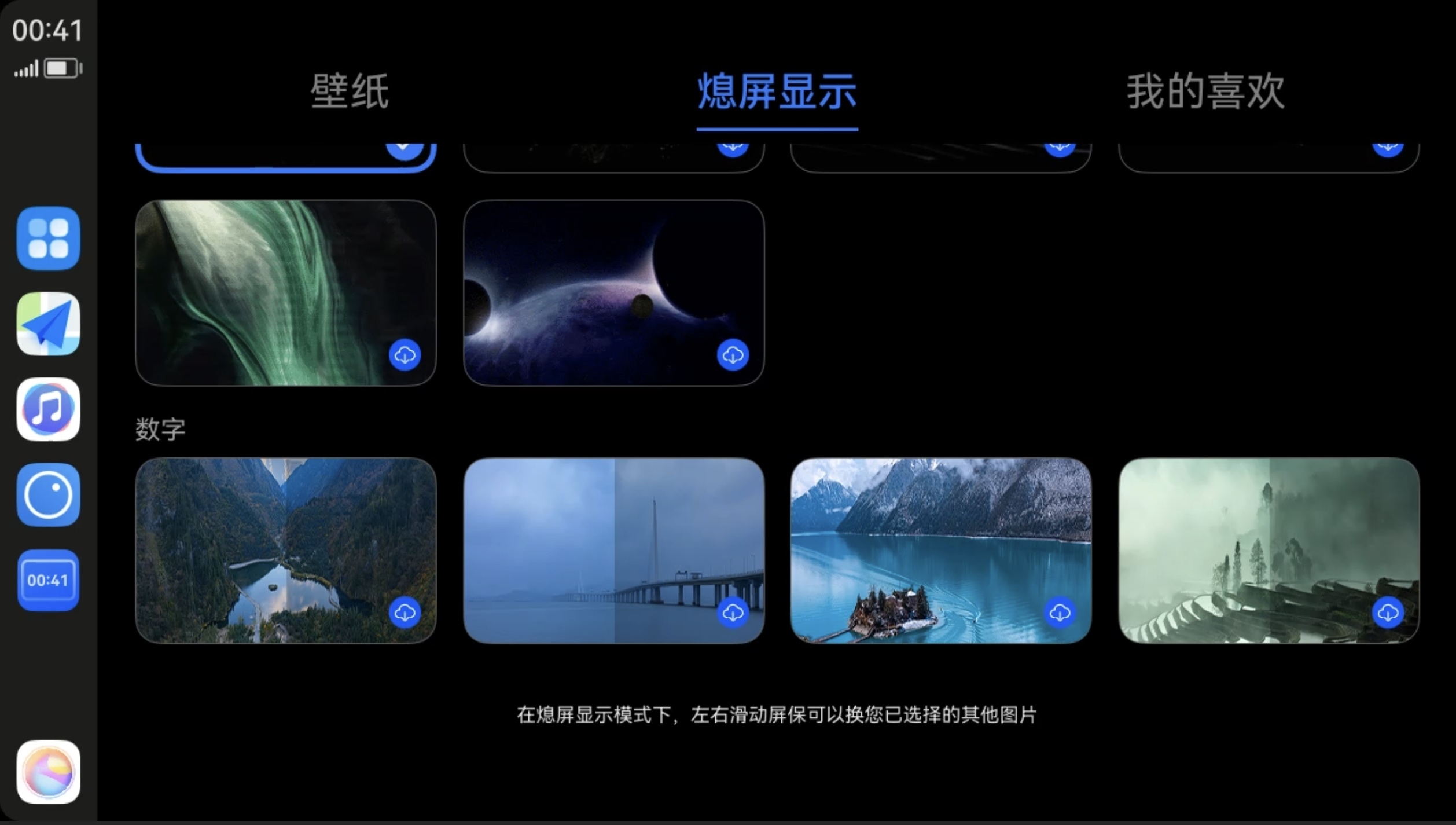
Switch to the "Always-On Display" tab to select the interface effect for the always-on display.