Switching Audio Playback Devices
After a successful Next HiCar connection, audio is switched to the vehicle's speakers by default. You can switch the audio playback device between your phone (including headphones connected to the phone, etc.) and the vehicle's audio system as needed.
Quick Switch from the Phone Notification Bar
After Next HiCar connects successfully, tap the live window.
In the Next HiCar banner that pops up, tap the second button on the right to switch the audio playback device.
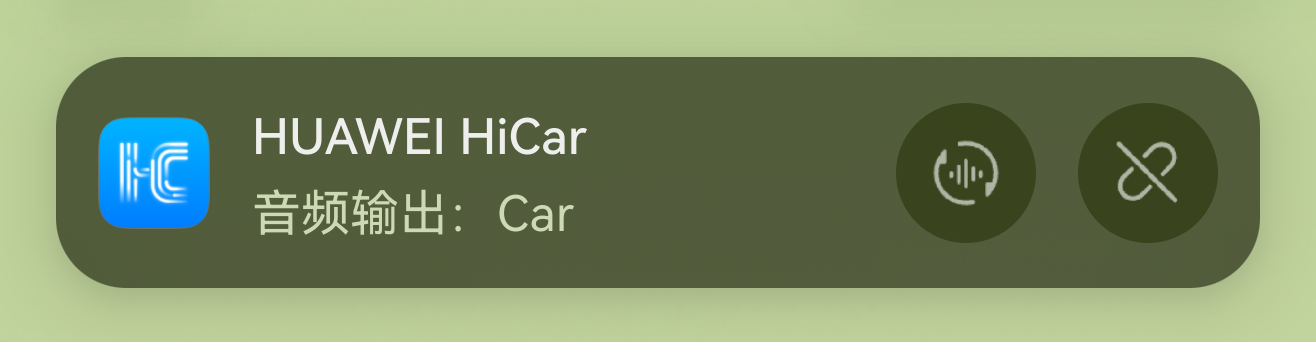
After switching to the vehicle system, tapping it again will switch audio back to the phone.
After switching to the phone, if the phone is also connected to headphones, smart glasses, or other devices, the audio will automatically play through those devices.
Quick Switch During a Call
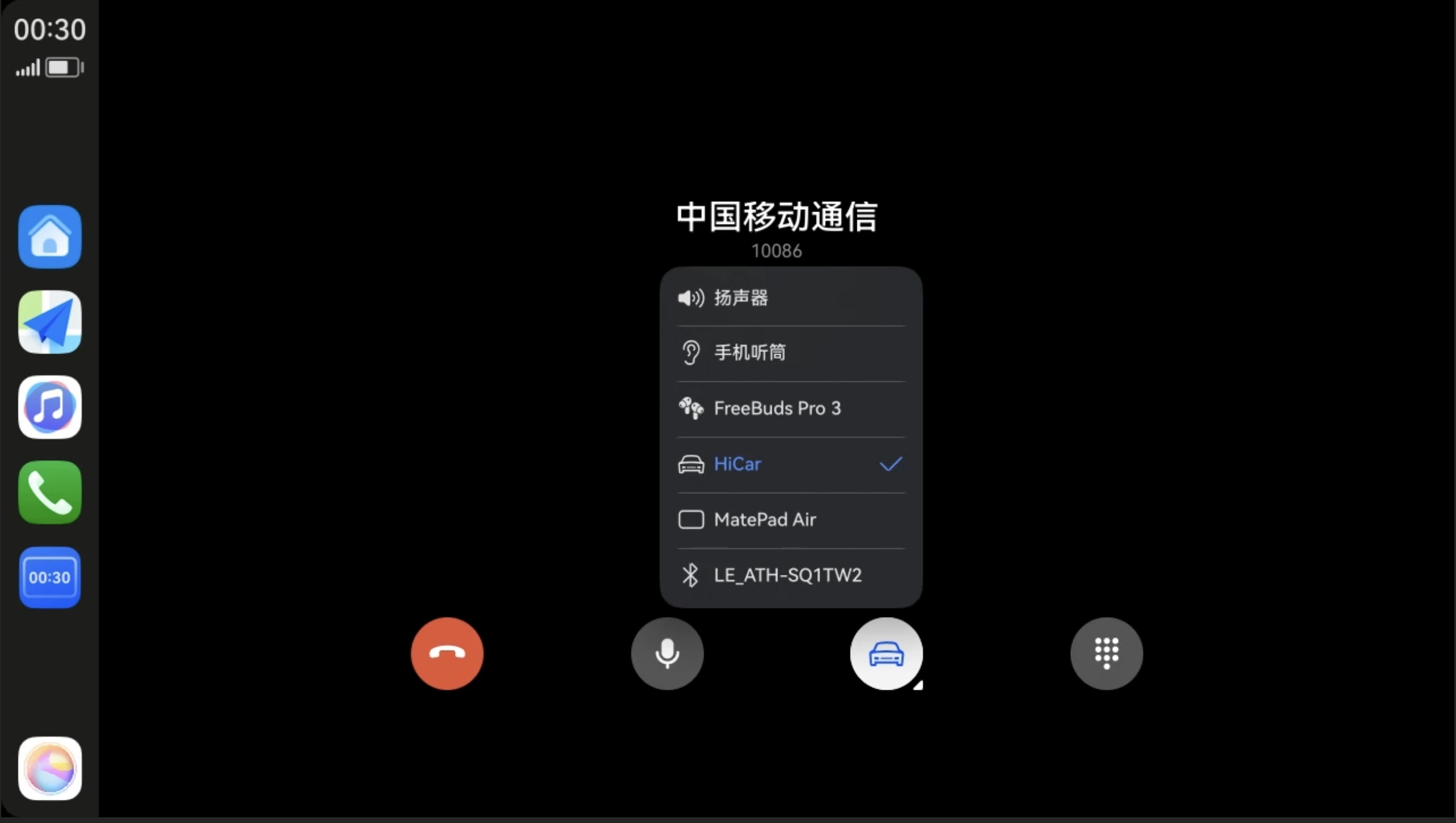
After connecting to Next HiCar, you can switch the call back to your phone or other devices connected to the phone, such as headphones or smart glasses, during a call.
On the call screen, select the third button from left to right to enter the device selection list.
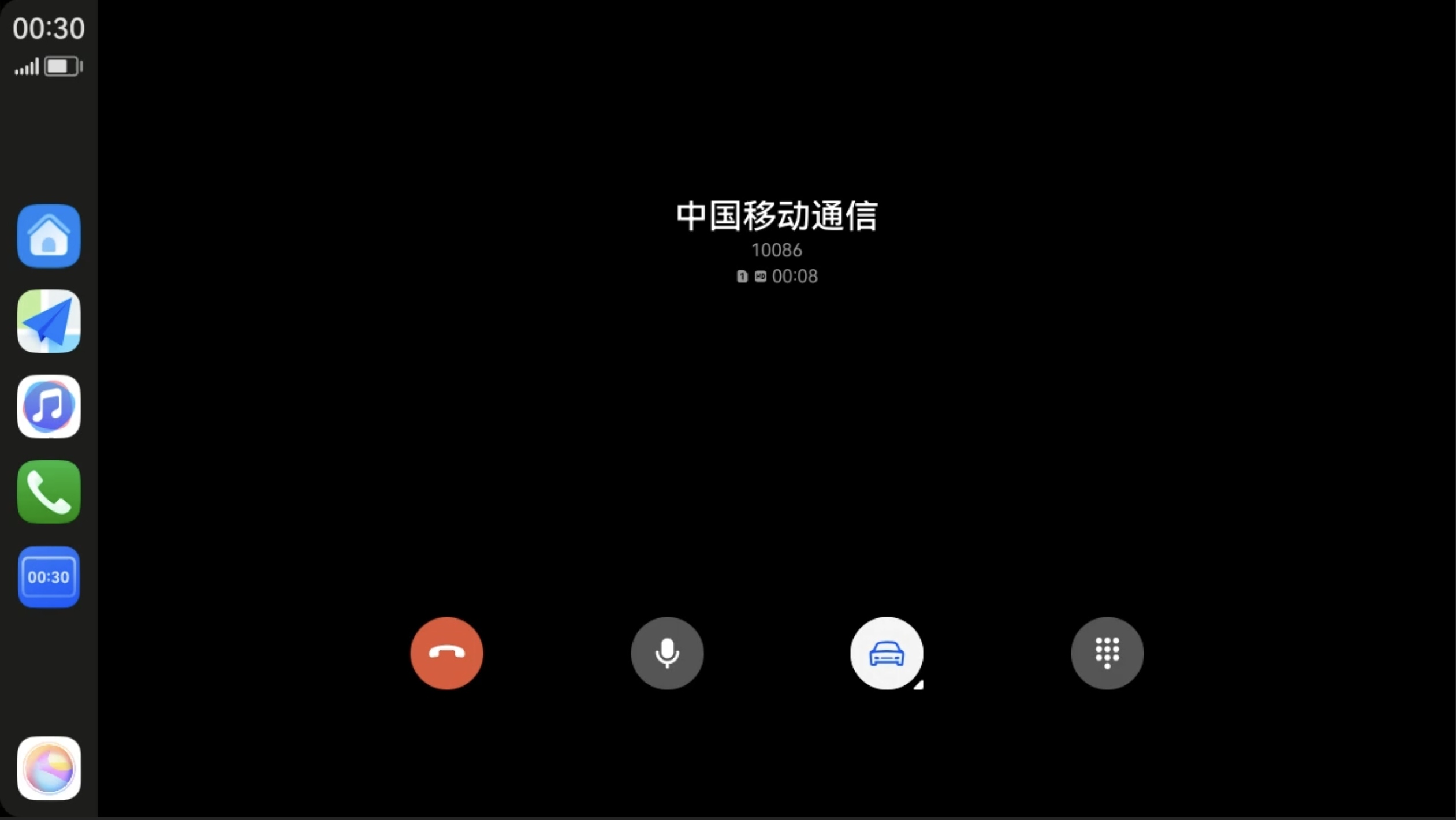
In the device selection list, switch the call to the desired output device.