Disconnect
HiCar is a software solution that connects your phone and head unit. When you need to disconnect, there are naturally two ways to do so:
- Disconnect from the phone side
- Disconnect from the head unit side
Disconnecting from the Phone Side
After HiCar is successfully connected, swipe down from the top of your phone screen to open the Notification Center.
Find "HiCar" in the notification panel, tap the downward arrow on the right to expand more options.
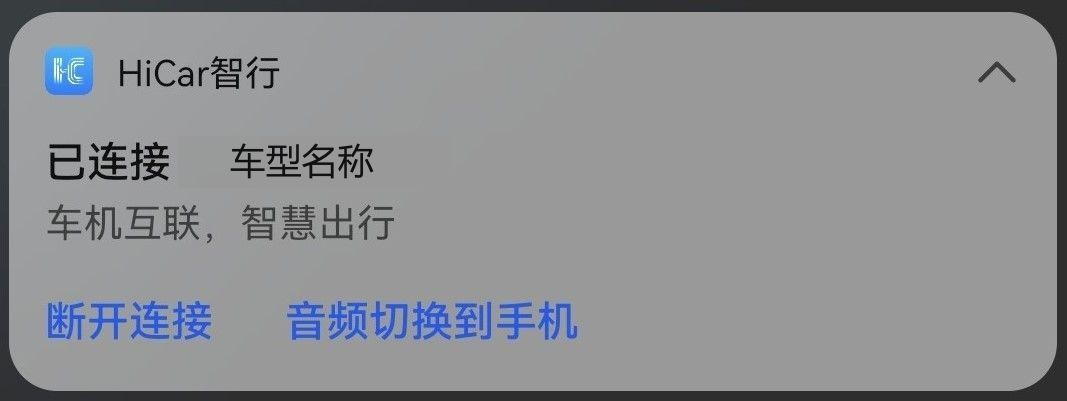
Since version 14.2.0.146, the banner notification has been optimized as shown below:
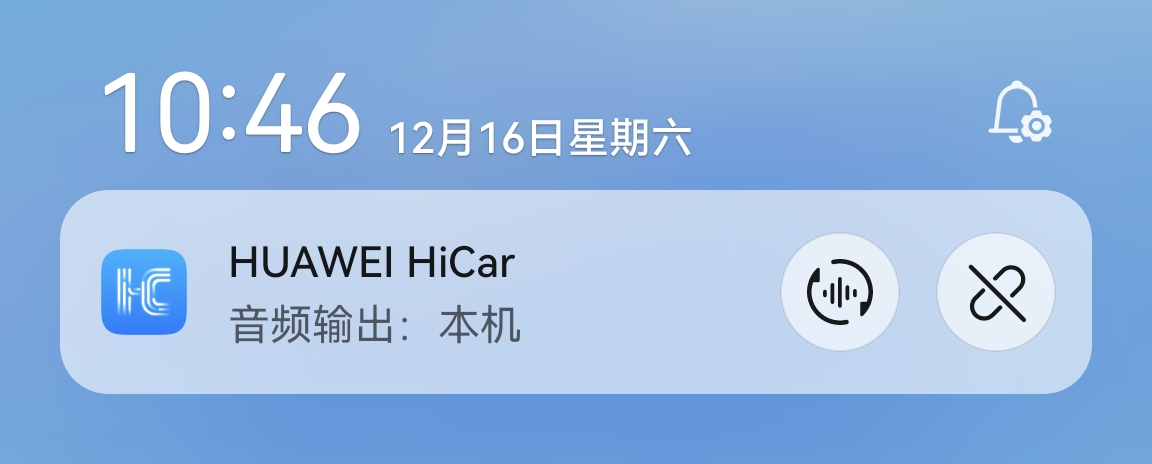
Tap the "Disconnect" text or button (rightmost button) to disconnect the HiCar connection.
Tap the "Switch Audio to Phone" text or button (second button from the right) to switch calls, music, navigation voice, etc., to play through your phone. After switching to the phone, if your phone is simultaneously connected to headphones, smart glasses, or other devices, the audio will automatically play through those devices. After switching to the phone, the button name will change to "Switch Audio to [Car Model Name]". Tap it again to switch audio back to the head unit.
Disconnecting from the Head Unit Side
Different car models or adapter box solutions may have different ways to disconnect HiCar from the head unit side.
You can try the following methods to disconnect HiCar from the head unit:
If your original vehicle supports HiCar, look for HiCar connection management menus or functions.
If you are using an adapter box, look for CarPlay or CarLife connection management menus or functions.
Of course, you can also directly disconnect HiCar from the head unit side by turning off the engine and cutting power.
Since some car models do not immediately cut power to the head unit after the engine is turned off, you may not be able to disconnect HiCar immediately. That's okay — once the head unit powers off, HiCar will disconnect automatically.