Setting Home and Work Addresses

When you use voice commands to navigate home or navigate to work, HiCar looks up the home and work addresses in the Smart Voice settings, rather than the related addresses saved in the map app.

You can set your home and work addresses using any of the following methods:

Set via Phone Settings

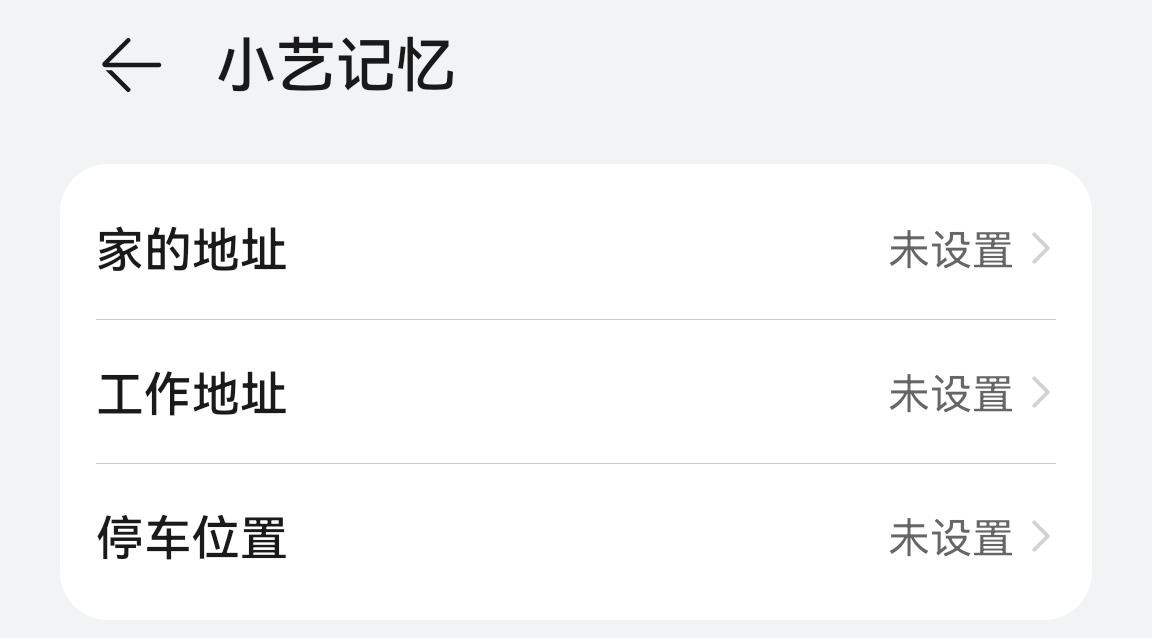
  1. Before connecting to HiCar, go to your phone's Settings > Smart Assistance > Smart Voice > Me > Xiao Yi Memory.

  2. Set the home and work addresses respectively.

Set via Voice (Method 1)

  1. After connecting to HiCar, wake up the smart voice assistant.
  2. Say "Set home address" or "Set work address".
  3. Speak the specific address information according to the voice prompts, and select the correct address.

Set via Voice (Method 2)

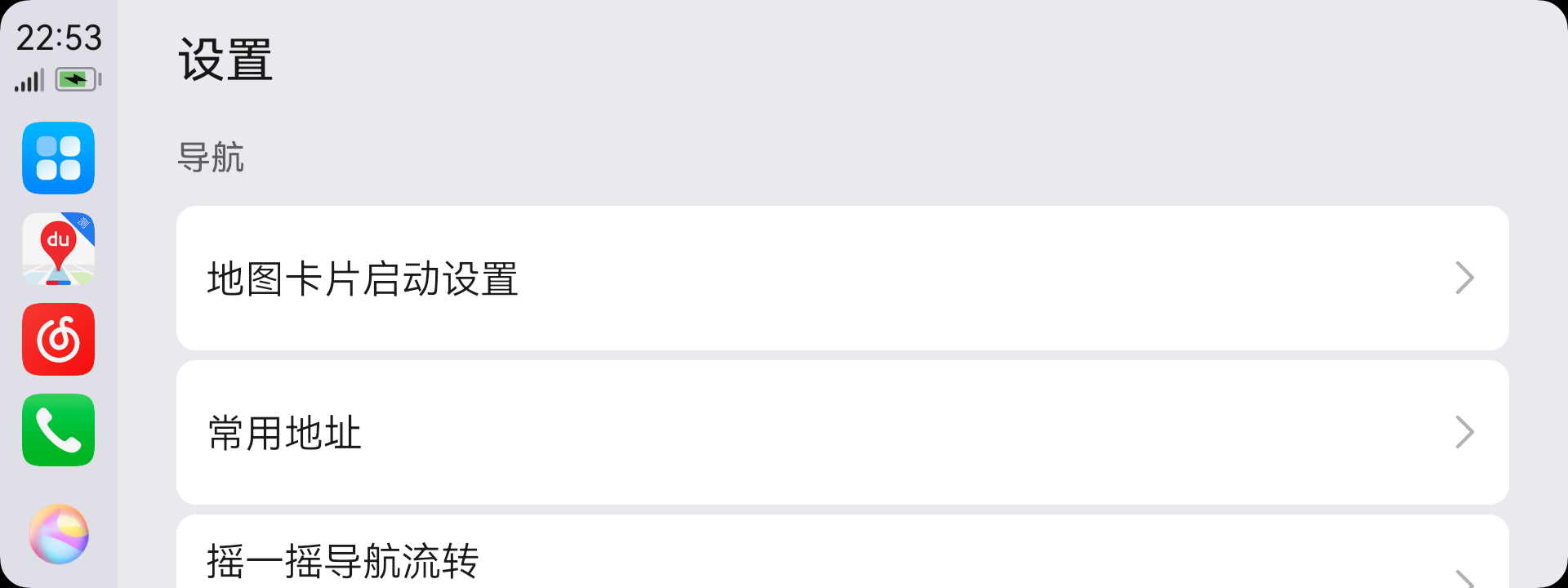
  1. After connecting to HiCar, tap the first icon above the DOCK area to switch to the app desktop.

  2. Go to Settings > Navigation, then select Frequent Addresses.

  3. Tap Home Address or Work Address, then speak the specific address information according to the voice prompts and select the correct address.