Setting Home and Work Addresses
When you use voice commands to navigate home or to work, HiCar looks up your home and work addresses in the smart voice settings, rather than in the map app's saved addresses. You can set your home and work addresses using any of the following methods.
Via Phone Settings
Before connecting to HiCar, go to your phone's "Settings > Smart Assistant > Celia > My Profile > Celia Memory".

Set the home and work addresses respectively.
Via Voice (Method 1)
- After connecting to HiCar, wake up the smart voice assistant.
- Say "Set home address" or "Set work address".
- Speak the specific address information according to the voice prompts and select the correct address.
Via Voice (Method 2)
After connecting to HiCar, tap the first icon at the top of the DOCK area to switch to the app desktop.
Go to "Settings > Navigation" and select "Common Addresses".
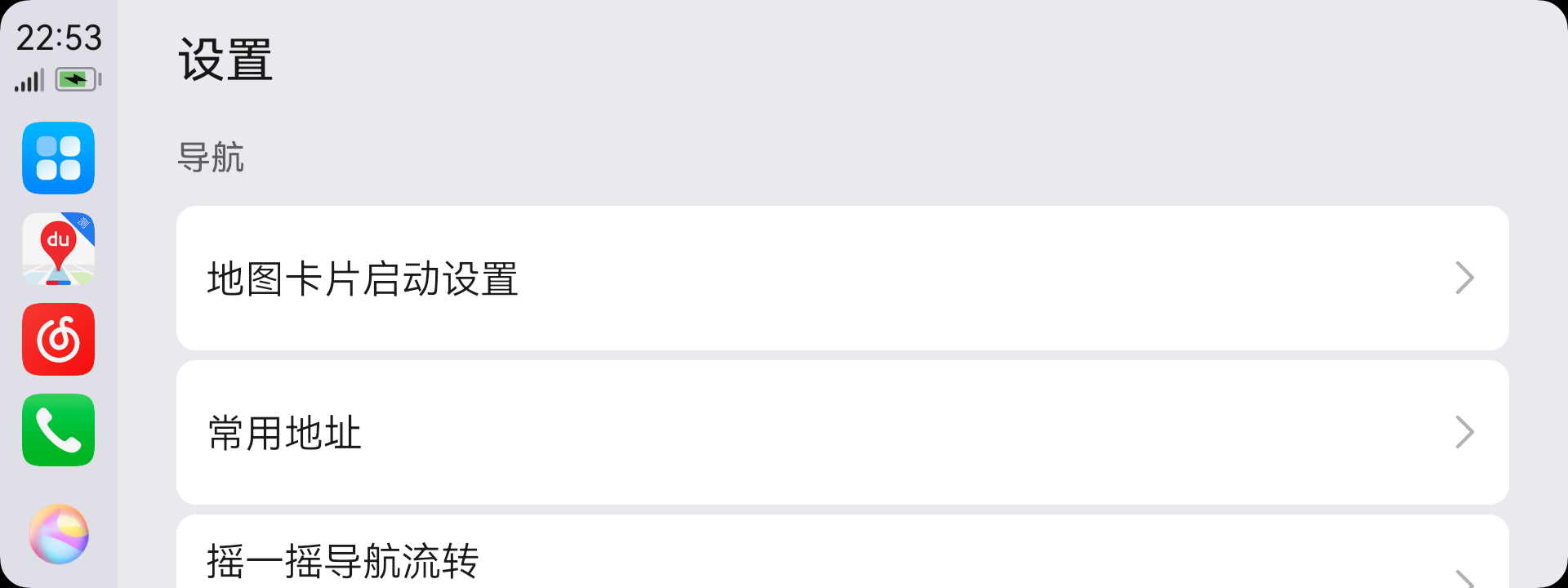
Tap "Home Address" or "Work Address", then speak the specific address information according to the voice prompts and select the correct address.